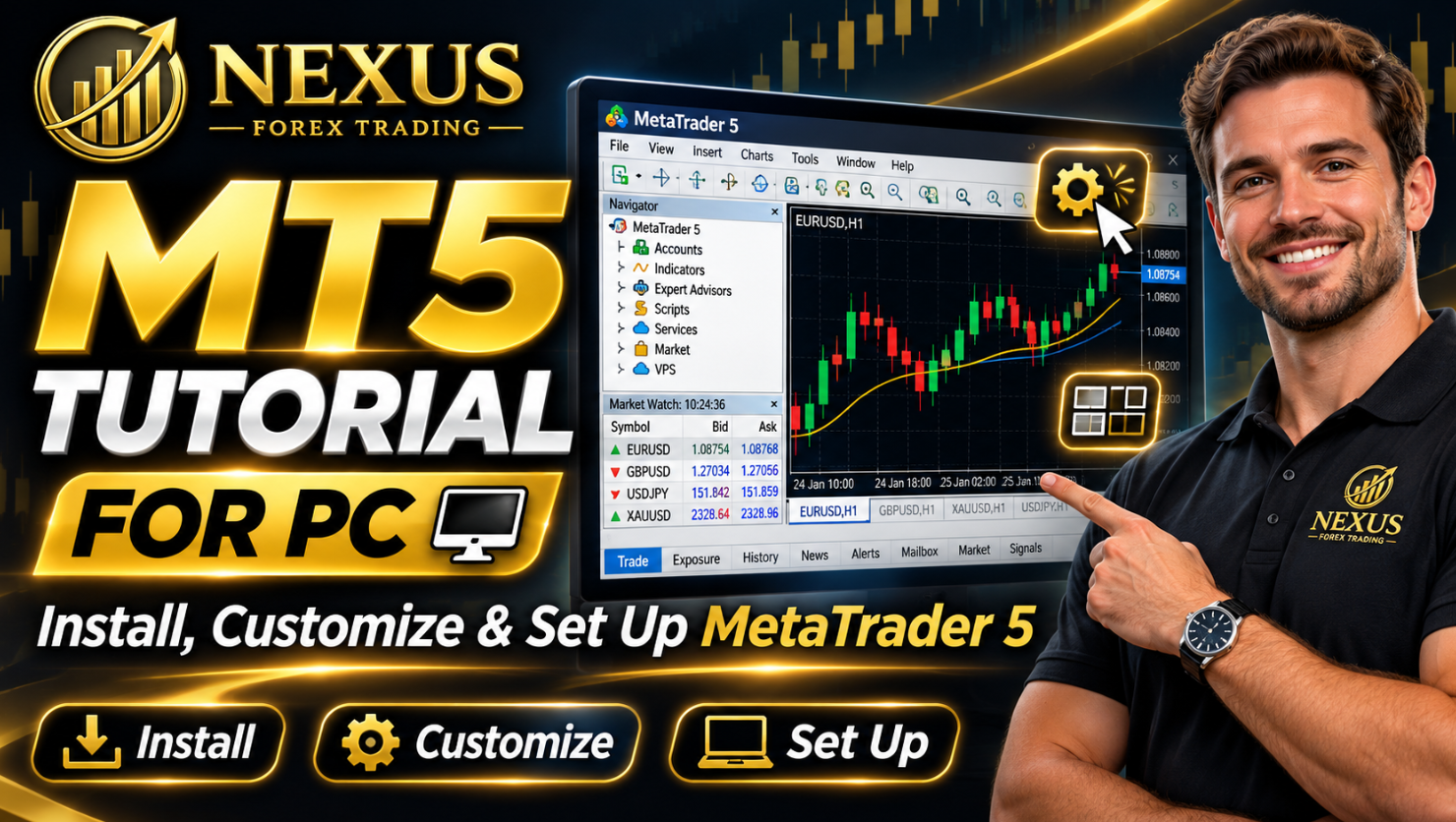
MetaTrader 5 looks cluttered the first time you open it. Four charts you did not ask for, panels you never use and toolbars full of buttons you will never press. The good news is that you can turn it into a clean, professional-looking trading workspace in under half an hour.
This guide is the written companion to our full video tutorial. It walks you through how to install MetaTrader 5 on your PC, log in to your trading account, set up your trading window, customise your charts, save a template and add indicators and objects. You can follow the video, read the steps, or do both.
The short version: download MT5 from your broker’s website, not an app store. Install it, log in with your account login and password, press Ctrl+T, Ctrl+M and Ctrl+N to clear the clutter, tile your charts, set your colours in Properties, save the result as a template and add only the tools you actually use.
- Watch the video
- What you need before you start
- How to download MT5 for PC
- How to install MetaTrader 5
- How to log in to your trading account
- How to set up your MT5 trading window
- How to customise your MT5 chart
- How to save a chart template
- How to customise the MT5 toolbars
- How to add indicators in MT5
- How to add objects to your chart
- Quick reference
- Run an Expert Advisor on MT5
- Frequently asked questions
Watch the MT5 setup video
The video’s screen recording uses a demo account, and the chart and customisation steps are identical on any MT5 account. Prefer to jump to one step? The video is split into chapters: downloading MT5 (0:49), installing it (3:33), logging in (4:11), setting up the trading window (5:56), customising the chart (8:25), saving a template (10:19), customising the toolbars (11:21), adding indicators (16:09) and adding objects (18:10).
Setting up MT5 for an Expert Advisor?
Nexus EAs run on MT4 and MT5. Open an eligible account with a Preferred Broker and the full EURUSD + GBPUSD licence costs nothing.
Claim your 100% free live trading licenceEligible, funded Preferred Broker accounts only. Nexus may receive compensation from Preferred Brokers.
What you need before you start
You only need three things to install and set up MT5 on a computer.
- A Windows or Mac computer. The desktop version is a separate download from the mobile app.
- A broker that offers MT5. The platform is supplied by your broker, so the download comes from their website.
- Your account details. That means your login number, your password and your broker’s server name, all of which your broker supplies when you open an account.
If you are new to trading, start on a demo account. A demo uses virtual money, so you can practise every step in this guide without risking anything. The video itself uses a demo account.
How to download MT5 for PC
The first thing to know is where not to look. The MT5 mobile apps for iPhone and Android come from the App Store or Google Play. The desktop version does not. You get it from the broker you are trading with, so the first step is to open an account with a broker that offers MT5.
If you plan to run a Nexus Expert Advisor, use one of the three Nexus Preferred Brokers. Open your account through the link below, then download MT5 from that broker’s site. Which broker is available depends on where you live, so check the brokers by country page first.
RoboForex
Open a RoboForex account, then sign in to your account area and look for the platforms or MetaTrader section to download the desktop version for your computer. RoboForex has restrictions for UK residents, so check that it is available where you live before you register.
Vantage Markets
Open a Vantage Markets account, sign in to your account area and find the platforms or MetaTrader 5 download page. Vantage operates through several regulated entities, so check which one serves your country.
AvaTrade
Open an AvaTrade account, sign in and look for the trading platforms section to download MT5 for desktop. Account types vary by country, so confirm what is available to you.
The broker links above are Nexus partner links, and Nexus may receive compensation from Preferred Brokers. In the video, the download is found in three steps that work on most broker sites: open the site, choose Platforms (or scroll to the footer), choose MT5, then scroll down to the download button.
Always download from your broker’s own website or from the official MetaTrader 5 website. A file from anywhere else could be altered, and a trading platform is not something to risk on a random download.
How to install MetaTrader 5
Once the file has downloaded, installation takes a couple of minutes.
- Open your Downloads folder and double-click the setup file.
- When the prompt asks whether to allow the app to make changes, click Yes.
- Follow the on-screen steps in the setup window until the installation finishes.
- Launch MetaTrader 5.
The first time it opens, MT5 asks you to connect to a trading account. That is the next step.
How to log in to your trading account on MT5
A new MT5 installation does not know who you are, so you connect it to an account you already have at your broker.
- In the connection window, select your broker from the list or search for it, then click Next.
- Choose to connect with an existing account.
- Find your account login, password and server in your broker’s client area or account-opening email, and copy them. In the video, the broker’s dashboard has a copy button for each.
- Paste the login and password into MT5. If the password will not copy, type it in by hand.
- Click to connect.
When it works, you will see your balance in the Toolbox panel at the bottom of the screen. A fresh MT5 opens with four default charts: EURUSD, GBPUSD, USDCHF and USDJPY. The account in the video has extra instruments added, so your list may look different.
Never share your trading password with anyone. Nexus, for example, only ever needs your broker name, platform and account number, never your passwords.
How to set up your MT5 trading window
This is where MT5 starts to look professional. The default layout gives the charts very little room, so the goal is to clear space and arrange what is left.
Hide the panels you are not using
Three keyboard shortcuts do most of the work:
- Ctrl+T opens and closes the Toolbox, the panel at the bottom that shows your balance and trades.
- Ctrl+M opens and closes the Market Watch, the list of symbols on the left.
- Ctrl+N opens and closes the Navigator, which holds your accounts, indicators and Expert Advisors.
You can reach the same windows from the View menu, but the shortcuts are quicker once you know them. Press each one again whenever you want a panel back.
Load the symbols you want to trade
With Market Watch open, click a symbol and drag it into a chart window. In the video, four different instruments are dragged into the four windows. Choose whichever symbols you trade.
Tile the windows and focus on one chart
To fill the screen evenly, right-click a chart tab at the bottom of the window (or use the Window menu) and choose Tile Windows. If you want to look at one chart on its own, click the maximise button on that window, or double-click its tab at the bottom.
How to customise your MT5 chart
Chart colours are personal, but a clean setup helps you read price at a glance. These are the changes made in the video.
- Right-click on the chart and choose Properties at the bottom of the menu.
- Open the Show tab and untick Grid to remove the grid lines.
- Open the Colors tab and set the background to white, with black for the foreground.
- Set the bull candle colour (candles that close higher) to steel blue and the bear candle colour (candles that close lower) to red. The video uses tomato, and later switches to a calmer shade because bright red can be tiring to look at.
- Click OK to apply.
Remove default indicators
If a moving average or any other indicator appears on the chart, right-click on it and choose Delete Indicator. You are left with a plain chart.
Two more settings worth checking
- Candle borders. In Properties, the bar up and bar down colours control the outline of each candle. They are black by default, which is why every candle has a dark border.
- Ask price line. On the Show tab, tick Show ask price line so the bid and ask lines both appear on the chart.
Finally, if you scroll back through history, the shift end of the chart from right border button jumps you back to the latest price with some space on the right of the chart.
Your MT5 is ready. Is your Expert Advisor?
Once your charts are set up, the free live licence gets the full Nexus EURUSD + GBPUSD EA running on your account. Start with one short form.
Get my free live licenceEligible, funded Preferred Broker accounts only. Nexus may receive compensation from Preferred Brokers.
How to save a chart template
Recolouring every chart by hand is a waste of time. A template saves your chart settings, so you can apply them to every window in a few clicks.
- Set up one chart exactly how you want it.
- Right-click on the chart, choose Templates and then Save Template.
- Give it a clear name. The video uses “plain chart”.
- On each of your other charts, right-click, choose Templates and click the template name.
You can save as many templates as you like. A common approach is one plain template and one for each indicator set you use, so you can switch between them in one click. The video later saves a second template that includes the MACD indicator.
How to customise the MT5 toolbars
The toolbars at the top of MT5 are full of buttons that most traders never use. Trimming them leaves a tidy, single-line row of the tools you do use.
Open the View menu and check that the toolbars you want are switched on. Three matter here: the Standard toolbar, the Line Studies toolbar and the Timeframes toolbar. Keep the timeframes visible, because you will switch between them constantly.
Remove what you do not need
Right-click on the Standard toolbar and choose Customize. A window opens with two lists. One shows the buttons currently on the toolbar and the other shows the buttons you can add. In the video, the new chart, profile, symbols and MetaEditor buttons are removed.
Add what you do need
From the list of available buttons, add the ones you use. The video adds Full Screen and Templates, and moves New Order to the front. You can drag buttons between sections to arrange them.
Customise the Line Studies toolbar
Right-click on Line Studies and choose Customize again. The video adds the arrowed line, the rectangle and the triangle. Put Line Studies at the far left and Timeframes at the far right, and everything sits on one line.
How to add indicators in MT5
An indicator is a calculation drawn on or below your chart, such as a moving average or MACD. MT5 gives you two ways to add one.
- From the menu: click Insert, then Indicators, and pick the indicator from its folder.
- From the Navigator: press Ctrl+N, open the Indicators folder, and drag the indicator onto your chart.
The video uses the MACD indicator as an example. After you drop it onto the chart, a settings window opens. The default MACD settings are 12, 26 and 9. If the colours look washed out, right-click on the indicator, open Properties and choose a stronger colour. The video switches the bars to steel blue so they stand out against the white background.
Then save the result as a template, such as “MACD”, and apply it to your other windows the same way as before.
An indicator describes what price has already done. It does not predict what happens next, and no indicator removes the risk of trading.
How to add objects to your chart
Objects are the lines and shapes you draw on a chart to mark levels and zones. The video covers the three most useful ones.
Trend lines with the arrowed line
Pick the arrowed line from the Line Studies toolbar and draw it on the chart. To change its colour, right-click on it and open Properties. Double-click an object to select it, and you will see small anchor points. Drag the centre to move the whole line, or drag one end to adjust only that end.
Rectangles for zones
Rectangles are handy for marking zones such as supply and demand areas. Draw the rectangle, then right-click it and open Properties. Choose a colour, and tick Fill in the parameters so the zone is shaded rather than only outlined.
Horizontal lines for support and resistance
Click the horizontal line tool, then click on the chart where you want it. Change the colour in Properties, as before.
Duplicate any object
To copy an object, select it so the anchor points show, hold Ctrl, then double-click and drag. A copy is created where you drop it, so you can build a set of levels quickly.
Quick reference
| What you want | How to do it |
|---|---|
| Show or hide the Toolbox | Ctrl+T |
| Show or hide Market Watch | Ctrl+M |
| Show or hide the Navigator | Ctrl+N |
| Arrange charts evenly | Right-click a chart tab or use the Window menu, then Tile Windows |
| Change chart colours or remove the grid | Right-click the chart, then Properties |
| Save chart settings | Right-click the chart, then Templates, then Save Template |
| Customise a toolbar | Right-click the toolbar, then Customize |
| Add an indicator | Insert, then Indicators, or drag from the Navigator |
| Copy a drawn object | Select it, hold Ctrl, double-click and drag |
Run an Expert Advisor on MT5
Once your workspace is set up, the next step for many traders is automation. An Expert Advisor (EA) is a program that trades on your MT5 account following a fixed set of rules. If you want to run one, you need an MT5 account with a broker that suits the EA.
Nexus builds rules-based EURUSD and GBPUSD Expert Advisors for MT4 and MT5. The live licence is 100% free when you open an eligible, funded live account with one of three Preferred Brokers: RoboForex, Vantage Markets or AvaTrade. Here is how it works.
- Choose your Preferred Broker and open a live account through its Nexus link: RoboForex, Vantage Markets or AvaTrade. Then download MT5 from that broker’s website.
- Fund the account with an amount you choose. Nexus does not set a deposit or ask what you paid in.
- Send Nexus your live account number. It is your MT5 login number, not your password.
- Nexus checks the account and emails your licensed files, normally within 12 to 24 hours.
It is the same software as the paid licence, with both the EURUSD and GBPUSD EAs, the MT4 and MT5 builds and a setup guide. If you would rather keep your own broker, the Own Broker Licence is $499.95 one-time. You can read how the account is tracked in the live results and check availability on the brokers by country page. Our setup guide covers installing the files, and the brokers and VPS page explains how to keep an EA running around the clock.
Ready to put your MT5 to work?
Choose a Preferred Broker, open your live account through the Nexus link and send us your account number. The licence is 100% free.
Claim your 100% free live trading licenceEligible, funded Preferred Broker accounts only. Nexus may receive compensation from Preferred Brokers.
Frequently asked questions
Where do I download MetaTrader 5 for PC?
From your broker’s website or the official MetaTrader 5 website. With the Nexus Preferred Brokers (RoboForex, Vantage Markets or AvaTrade), open your account first, then find the MT5 desktop download in the broker’s platforms section. Only the mobile apps are found in the app stores.
Is MetaTrader 5 free?
The platform itself is free to download. Your broker may charge trading costs such as spreads or commissions when you trade.
Can I use MT5 on a Mac?
Many brokers offer both a Windows and a Mac download. Check the platforms page of your broker to see which versions are available.
What are the Ctrl+T, Ctrl+M and Ctrl+N shortcuts?
They show or hide the Toolbox, Market Watch and Navigator panels. Press the same shortcut again to bring a panel back.
How do I remove the grid from my MT5 chart?
Right-click on the chart, choose Properties, open the Show tab and untick Grid.
How do I change candle colours in MT5?
Right-click on the chart, choose Properties and open the Colors tab. Set the bull candle and bear candle colours there.
How do I save my chart settings in MT5?
Right-click on the chart and choose Templates, then Save Template. Give it a name, then apply it to other charts from the same menu.
How do I add an indicator in MT5?
Click Insert, then Indicators, or press Ctrl+N and drag an indicator from the Navigator onto the chart.
Do I need a demo account first?
It is a sensible way to learn the platform. A demo uses virtual money, so you can practise every step without risking capital.
Does Nexus work on MT5?
Yes. Nexus EAs are available for MT4 and MT5. The free live licence covers eligible funded accounts with RoboForex, Vantage Markets or AvaTrade.
Risk warning: Trading forex and CFDs involves significant risk of loss. Past performance does not guarantee future results. This article is for education only and is not personal financial advice. The broker links in this article are Nexus partner links, and Nexus may receive compensation from Preferred Brokers. Broker availability, spreads, fees and leverage vary by country and account.