Nexus EA Setup Guide

⚠️ Risk Warning & Disclaimer — see bottom of page before proceeding
Setup Guide

Nexus EA Easy Setup Guide

Follow this step-by-step guide to get your EURUSD or GBPUSD Expert Advisor up and running correctly on a VPS with MetaTrader 4.

📧

Important — Email Us Your Trading Account Number First

Once you have signed up with one of our partner brokers, please email your MT4 trading account number and broker name to info@nexusforextrading.com. We will then send your EA files with the licence key coded specifically to that account. The licence is limited to one broker account per purchase and will not work on any other account.

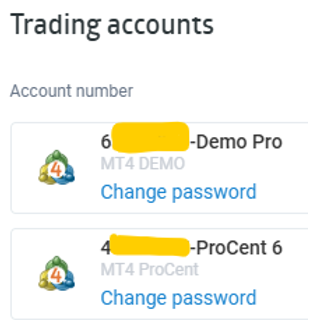
Where to find your MT4 trading account number
Your trading account number is displayed inside MT4 — email this to us along with your broker name

Quick Start Checklist

10 Steps
1
Buy the Nexus EA
2
Open a trading account under one of our partner brokers
3
Email your trading account number and broker name to us
4
Receive your licensed EA and .set file from us
5
Install MT4 on your VPS
6
Copy the EA file into the MQL4 Experts folder
7
Attach the EA to the correct chart and load the .set file
8
Enable AutoTrading
9
Run on demo for 2 to 4 weeks minimum
10
Go live with a small, conservative position size
Watch: Video Guide to Installing MT4 Expert Advisors
Step 01

VPS & Remote Desktop Setup

Set up a Virtual Private Server to keep MT4 running 24 hours a day

A VPS is a remote Windows computer that stays online around the clock. It keeps your MT4 platform and EA running even when your own computer is switched off. This is essential for uninterrupted automated trading.

Section 1AOrder Your ChocoPing VPS
Recommended VPS: ChocoPing Cheapy VPS #3 — 3GB. This plan is Forex-focused, great value for 1 to 3 MT4 terminals, and offers low-latency locations. Choose New York or London for the best connection to most FX brokers.
  • Go to chocoping.com and click Pricing / Plans or Order Now.
  • Select the CHOCO – 3GB plan. Choose the New York or London location for lowest latency.
  • Under Operating System, select Windows Server 2019 (or 2016 if you prefer).
  • Create your account using a strong password and complete the checkout process.
  • After payment, ChocoPing will email you your VPS IP address, username (usually Administrator) and password. Save these details somewhere secure.
Security tip: Enable two-factor authentication (2FA) in your ChocoPing account settings if the option is available.
Section 1BConnect to Your VPS via Remote Desktop

You do not install a VPS like regular software — you connect to it. When connected, you will see the VPS Windows desktop and can work on it just as if it were in front of you.

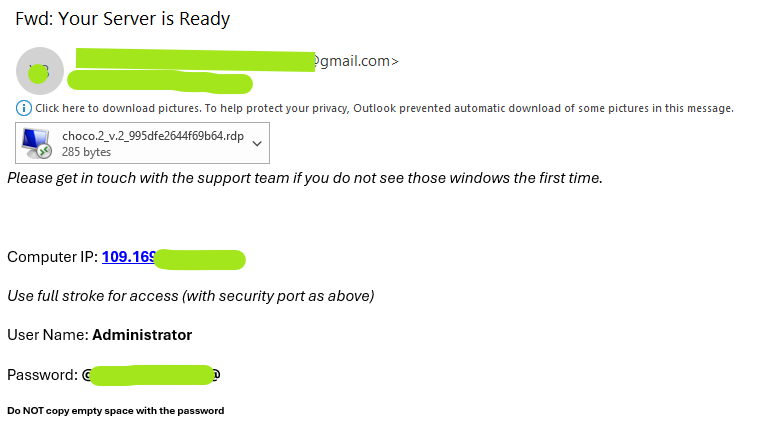
ChocoPing will email your login details when your server is ready:

ChocoPing server ready email with login details
The ChocoPing server-ready email contains your VPS IP address and login credentials

To open Remote Desktop on your Windows PC:

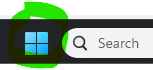
  • Click the Windows Start button on your taskbar to open the Start menu.
Windows Start button
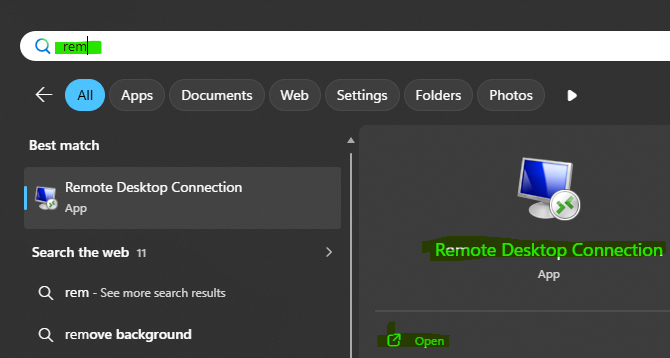
Click the Windows Start button, then type "Remote Desktop" to search for the app
  • Type Remote Desktop in the search bar and open the Remote Desktop Connection application.
Remote Desktop Connection dialog
Enter your VPS IP address in the Computer field, then click Connect
  • In the Computer field, enter your VPS IP address (found in the ChocoPing email).
  • For the Username, enter Administrator.
  • Click Connect, then enter the password from the ChocoPing email when prompted.
Mac users: Install Microsoft Remote Desktop from the App Store. Click Add PC, enter your VPS IP address, set the User Account to Administrator, then click Connect.

iOS and Android users: Use the Microsoft Remote Desktop app. Tap Add PC, enter your VPS IP address and credentials, then connect.
Section 1CFirst-Time Windows Setup Inside the VPS
  • Change the Administrator password — go to Start, then Settings, then Accounts, then Sign-in options.
  • Install Windows Updates — run all important updates straight away. Set Active Hours to avoid MT4 being interrupted during trading sessions.
  • Adjust power settings — go to Control Panel, then Power Options, and select High Performance. Make sure the server is set to never sleep or hibernate.
  • Copy files to the VPS — the Remote Desktop clipboard lets you copy and paste files directly from your local computer to the VPS desktop. You can also use OneDrive or Google Drive as an alternative.
Pro tip: Add your MT4 shortcut to the Windows Startup folder so that MT4 relaunches automatically after any VPS reboot. Press Win + R, type shell:startup, and paste the MT4 shortcut into that folder.
Step 02

Sign Up With a Partner Broker

Required for EA licence activation — must use our partner referral link

Account type rule: If your trading balance is below $20,000, you must use a Cent account. If your balance is above $20,000, you may use a Standard account if you prefer.

To activate your EA licence, you must register through one of our partner brokers using our referral link. Click here to find which brokers are available in your country.

The signup and MT4 installation process is identical for all of our partner brokers. We use RoboForex as the example in the steps below.

Section 2ACreate Your Broker Account
  • Go to roboforex.com and click Sign Up or Open an Account.
  • Enter your email address, full name and phone number, then verify both your email and phone.
  • When asked for a partner code, enter eerse to ensure you are registered under our referral.
  • Complete KYC verification by uploading a photo ID (passport or national ID card) and a proof of address (utility bill or bank statement dated within 3 months).
  • Set a strong password and enable two-factor authentication (2FA) in the Members Area for added security.
Section 2BCreate a ProCent Trading Account
  • In the Members Area, click Open an Account.
  • Set Platform to MT4, Account Type to ProCent, and Currency to USD.
  • Set your Leverage — for example 1:1000. Adjust this to suit your risk tolerance and any local regulations that apply to you.
  • Enter the Partner code: eerse
  • Make a note of the exact server name shown — for example RoboForex-ProCent-x. You will need this to log in to MT4 later.
  • After submitting, your trading account number and trader password will be displayed on screen and also emailed to you. Save both securely.
  • 📧 Email your trading account number and broker name to info@nexusforextrading.com. We will then send your licensed EA files with the licence coded to that account.
Section 2CCreate a Demo Account
  • In the Members Area, click Open a Demo Account.
  • Set Platform to MT4 and Type to Pro (or ProCent Demo if available).
  • Set a demo starting balance — anywhere from $1,000 to $20,000 — with matching leverage.
  • Save your demo login number, password and server name as you will need these in MT4.
Why set up both accounts? The demo account lets you safely validate the EA's behaviour before putting any real money at risk. The ProCent account allows you to trade in live market conditions with very small real position sizes once you are confident in the EA's performance.
Section 2DFund Your Broker Account
  • In the Members Area, click Deposit Funds.
  • Choose a payment method — options typically include card, e-wallet and bank transfer, though availability varies by region.
  • Select your ProCent MT4 account as the destination for the deposit.
  • Enter the amount. Note that on Cent accounts, depositing $1,000 will appear as 100,000 cents in your account balance — this is entirely normal and expected.
  • Complete the payment flow and confirm the deposit appears correctly in your Members Area before proceeding.
Start with a modest deposit. Only add more funds gradually once you are satisfied with the EA's live performance on a small balance.
Step 03

Download & Install MetaTrader 4

Install the trading platform on your VPS and log in to your account

Section 3ADownload and Install MT4 on Your VPS
  • Connect to your VPS via Remote Desktop as described in Step 1.
  • Inside the VPS, open a web browser and navigate to your broker website — for example roboforex.com.
  • Download MetaTrader 4 (MT4) from the Members Area or the broker's dedicated MT4 download page.
  • Run the installer inside the VPS and accept all the default settings when prompted.
  • Launch MT4 once installation completes. If the Open an Account wizard appears automatically, close or cancel it — you already have your account credentials ready.
Section 3BLog Into Your Trading Account in MT4
  • In MT4, click File in the top menu, then select Login to Trade Account.
  • In the Login field, enter your MT4 trading account number.
  • In the Password field, enter your trader password.
  • In the Server field, select or type the exact server name — for example RoboForex-ProCent-x for a live account, or RoboForex-Demo for a demo account.
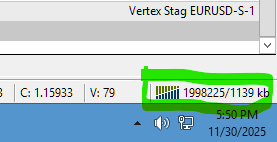
  • Click Login. After approximately 10 seconds, the bottom-right corner of MT4 will show green and red connection bars, confirming that you are successfully connected.
MT4 connected — green and red bars shown in the bottom right corner
Green and red connection bars in the bottom-right of MT4 confirm a successful login
Not connecting? The most common cause is an incorrect server name. Even a single character difference will prevent connection. Go back to File, then Login to Trade Account, and carefully double-check the server name matches exactly what was shown when you created your account.
Step 04

Add the EA Files to MT4 & Configure

Install the Nexus EA and attach it to the correct chart

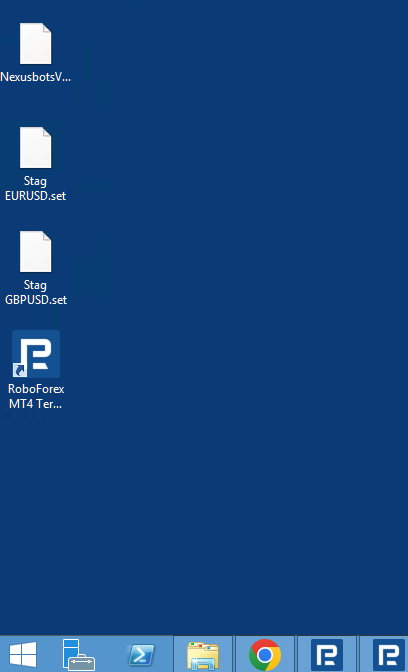
Once you receive your EA files from us by email, the first thing to do is copy them across to your VPS desktop so they are easy to access during the setup steps below.

EA files copied to the VPS desktop
Copy the EA files from your email attachment directly onto the VPS desktop
Section 4ACopy the EA File Into MT4
  • In MT4, click File in the top menu, then select Open Data Folder.
File menu — Open Data Folder
File → Open Data Folder opens the MT4 data directory in Windows Explorer
  • In the folder that opens, double-click to open the MQL4 folder.
MQL4 folder inside the MT4 data directory
Open the MQL4 folder
  • Inside the MQL4 folder, open the Experts folder.
Experts folder inside MQL4
Open the Experts folder inside MQL4
  • Copy the file NexusBotsV2.ex4 from your VPS desktop and paste it into this Experts folder.
Pasting NexusBotsV2.ex4 into the Experts folder
Paste the NexusBotsV2.ex4 file into the Experts folder
  • Close the folder window, then fully exit MT4 by clicking File, then Exit. This is required to allow MT4 to recognise the new EA file on its next launch.
Closing the MT4 platform completely
Close MT4 completely before reopening — do not just minimise it
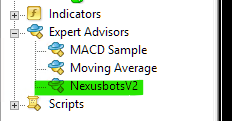
  • Reopen MT4. The EA will now appear in the Navigator panel on the left-hand side of the platform, listed under Expert Advisors.
NexusBotsV2 showing in the MT4 Navigator panel
NexusBotsV2 now appears in the Navigator panel under Expert Advisors
Section 4BOpen the Correct Chart and Timeframe

The Nexus EA must be run on the correct currency pair and the correct chart timeframe. Running it on the wrong timeframe will negatively affect its performance.

GBPUSD M5 — 5 Minute Chart Stag GBPUSD.set
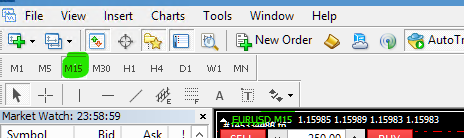
EURUSD M15 — 15 Minute Chart Stag EURUSD.set
Selecting the correct chart timeframe in MT4
Use the MT4 toolbar to select the correct currency pair and set the timeframe
Section 4CDrag the EA Onto the Chart
  • In the Navigator panel on the left side of MT4, find NexusBotsV2 listed under Expert Advisors.
  • Click and drag it directly onto your open chart. A settings popup window will appear automatically.
Dragging NexusBotsV2 from the Navigator panel onto the chart
Drag NexusBotsV2 from the Navigator panel and drop it onto your chart
Section 4DSettings Popup — Common Tab

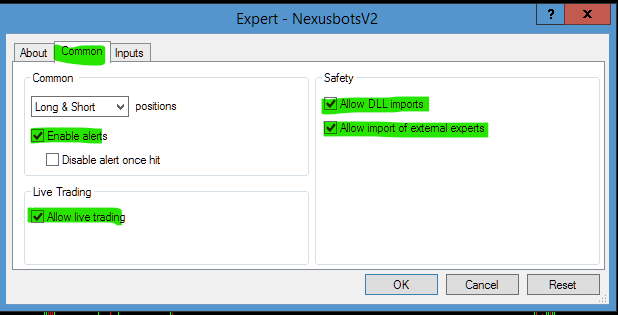
The settings popup has two important tabs. Start with the Common tab and make sure both of the following boxes are ticked:

  • Allow live trading — must be ticked ✔
  • Allow DLL imports — must be ticked ✔
Common tab with Allow live trading and Allow DLL imports ticked
Common tab — confirm both boxes are ticked before moving to the Inputs tab
Section 4ESettings Popup — Inputs Tab — Load the Preset File
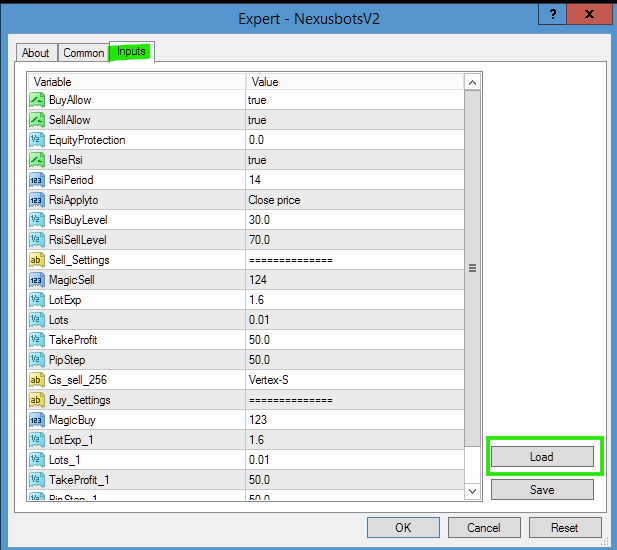
  • Click the Inputs tab at the top of the same popup window.
  • Click the Load button to browse for your preset file.
Inputs tab with the Load button visible
Click Load in the Inputs tab to locate and open your .set preset file
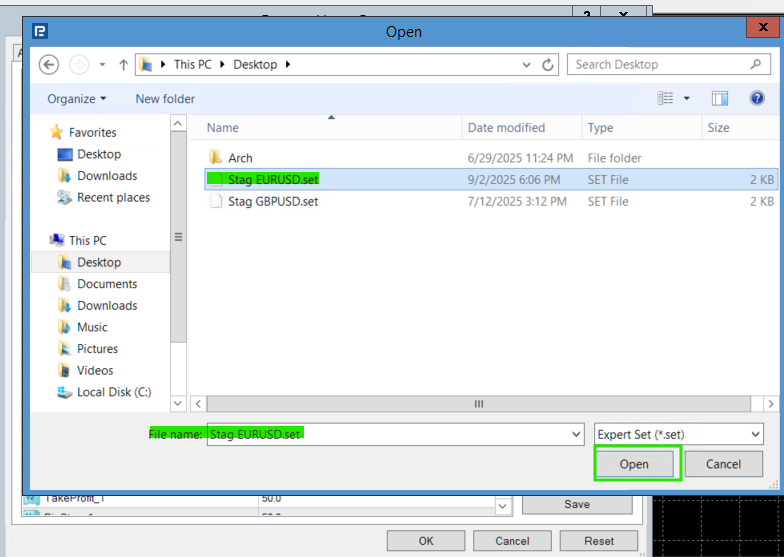
  • Navigate to your VPS desktop and select the correct preset file for your currency pair.
  • For EURUSD, select Stag EURUSD.set
  • For GBPUSD, select Stag GBPUSD.set
Selecting the correct .set preset file from the VPS desktop
Select the correct .set file for your currency pair from the VPS desktop
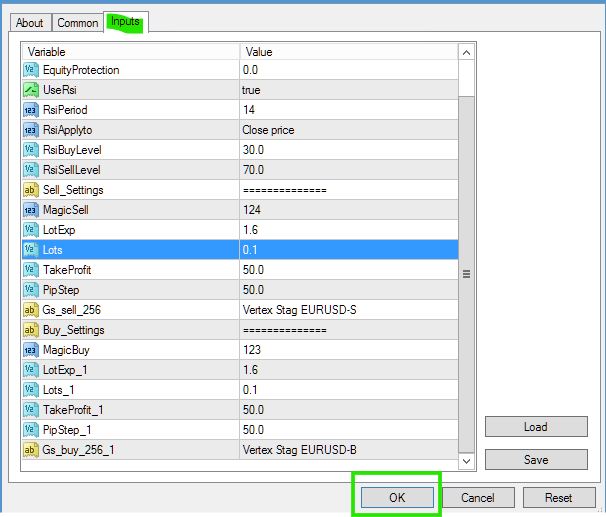
Section 4FSet Your Lot Size

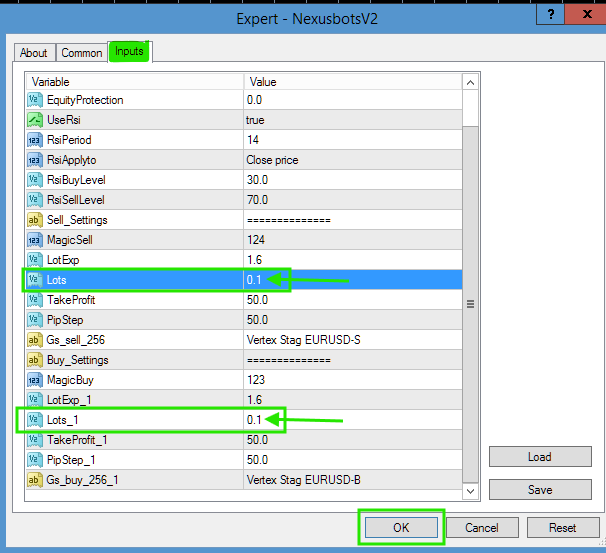
Still in the Inputs tab, locate the lot size field. Set a conservative starting value — we recommend starting low and increasing only as you build confidence in the EA's live performance.

  • For a Cent account, start with 0.1 lots per $1,000 of balance. For example, a $2,000 balance would use 0.2 lots.
  • For a Non-Cent account, start with 0.01 lots per $50,000 of balance.
Lot size input field in EA settings
Set a low lot size to begin with — you can always increase it gradually over time
  • Once you have set the lot size, click OK to close the settings window and activate the EA on the chart.
Clicking OK to apply EA settings
Click OK to apply all settings and activate the EA
Section 4GEnable AutoTrading

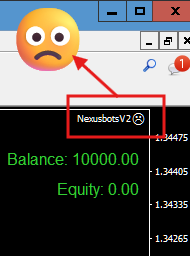
If a sad face appears in the top-right corner of your chart after clicking OK, it means AutoTrading is currently disabled. You need to switch it on before the EA can place any trades.

Sad face icon indicating the EA is inactive
A sad face on the chart means the EA is loaded but not yet active — enable AutoTrading to fix this

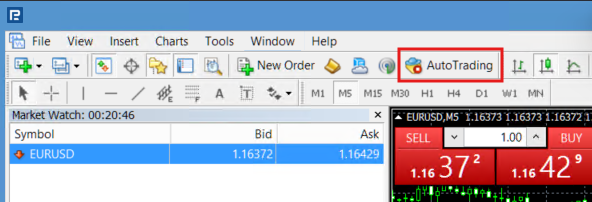
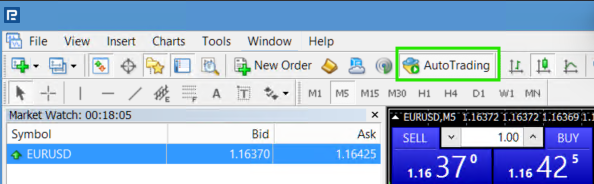
Click the AutoTrading button in the top MT4 toolbar to toggle it on. The button will turn green when active.

AutoTrading button in the OFF state
AutoTrading — OFF
AutoTrading button in the ON state, shown in green
AutoTrading — ON (green)

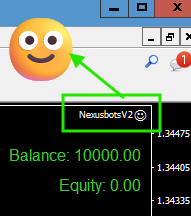
Once AutoTrading is enabled, a smiley face will appear in the top-right corner of the chart. This confirms the EA is active and will begin monitoring the market.

Smiley face confirming the Nexus EA is live and active
Smiley face = Nexus EA is live and actively monitoring the market
🎉

That's It — You're Live!

The Nexus EA is attached, configured, and AutoTrading is enabled. It will now monitor the markets and place trades automatically according to its strategy.

After Setup — What To Do Next

🧪 Validate on Demo First

  • Run the EA on demo for at least 4 to 6 weeks before going live.
  • Compare the EA's behaviour against your expectations.
  • Check the Journal and Experts tabs in MT4 regularly for any error messages.

🚀 Go Live Carefully

  • Begin with a small position size on the ProCent account.
  • Monitor performance daily and adjust your lot size if needed.
  • Check VPS uptime each morning and ensure MT4 restarts automatically after Windows updates.
Correct Timeframes
GBPUSDM5 — 5 Minute Chart
EURUSDM15 — 15 Minute Chart
Recommended Starting Lot Sizes
Account TypeBalanceStarting Lot Size
Cent Account$1,0000.1 Lot
Cent Account$2,0000.2 Lots
Non-Cent Account$50,0000.01 Lot
Use the free RoboForex Lot Size Calculator to work out the right lot size based on your exact account balance and the margin available with your broker.
Troubleshooting — Common Issues

If the EA is not opening trades, work through the questions below one by one to identify and resolve the issue.

EA is attached to the chart but no trades are opening
+
Check the Journal tab at the bottom of MT4. If the EA attempted to open a trade but something prevented it, the reason will be logged there. Common causes include the market being closed, the spread being too wide, or the EA's entry conditions simply not having been met yet. This is normal behaviour — the EA trades only when its specific conditions align.
Orders are not executing — possible lot size error
+
On MT4 ProCent accounts, the minimum lot size is 0.1. If you have entered a value smaller than this in the EA Inputs tab, orders will fail without an obvious error message. Double-click the EA on the chart to reopen its settings, then go to the Inputs tab and increase the lot size to at least 0.1.
A sad face is showing on the chart — EA not running
+
The sad face means AutoTrading is currently disabled. Click the AutoTrading button in the MT4 top toolbar until it turns green. Also double-click the EA on the chart, go to the Common tab, and confirm that Allow live trading is ticked.
MT4 shows "No connection" or will not connect
+
The most common cause is an incorrect server name. Go to File → Login to Trade Account and compare the server name very carefully against what was shown when you created your account — for example RoboForex-ProCent-x. Even a single character difference will block the connection entirely.
MT4 stopped running after a VPS reboot
+
Add MT4 to the Windows Startup folder so it relaunches automatically after every reboot. Right-click the MT4 shortcut and choose Copy. Then press Win + R, type shell:startup and press Enter. Paste the shortcut into that folder. MT4 will now open automatically whenever the VPS restarts.
I see error codes in the Journal that I do not understand
+
All MT4 error codes are documented at docs.mql4.com/en/trading. Copy the error number shown in the Journal tab and search for it on that page for a full explanation of what went wrong and how to resolve it.
⚠️   Risk Warning & Full Legal Disclaimer — click to read

High Risk Warning

Forex trading is highly speculative and involves significant leverage. You can lose some or all of your invested capital. Only trade with money you can genuinely afford to lose.

Educational Information Only — Not Financial Advice

This guide, the preset files, and all examples provided are for information and educational purposes only. Nothing in this guide constitutes investment advice, legal advice, tax advice, or a solicitation to trade.

No Liability for Trading Losses

You are solely responsible for all trading decisions, risk settings, broker selection, and live deployment choices. Nexus Forex Trading accepts no responsibility for trading losses, drawdowns, broker issues, platform errors, or any opportunity costs arising from use or misuse of the EA, presets, or this guide.

Preferred Broker Requirement

For the smoothest setup and full standard EA activation, clients must open an account and trade through one of our preferred partner brokers using Nexus Forex Trading as the referral partner. These brokers have been selected specifically to minimise common EA issues such as high spreads, poor execution, slippage, and platform compatibility problems.

Own Broker Activation Fee

As stated in the purchase Terms and Conditions, if you choose not to use one of our preferred brokers, a $499.95 Own Broker Activation Fee is required before the EA can be activated for that broker environment. This fee covers the additional configuration, compatibility review, and support required.

Mandatory Demo Testing Required

Before any live deployment, you must test the EA thoroughly in the Strategy Tester and run it on a demo account for long enough to properly understand its behaviour under your broker's specific conditions — including spread, commission, execution speed, account type, leverage, and any broker restrictions. Only proceed to a live account after achieving satisfactory demo results.

Past Performance Does Not Guarantee Future Results

Any backtests, forward tests, demo results, live account screenshots, or third-party verification shown are not a guarantee of future performance. Market conditions change constantly, and future results may differ significantly from those shown.

Ongoing Monitoring Is Required

Automated trading reduces but does not eliminate risk. You must monitor the EA's performance on a regular basis and be prepared to pause trading, reduce position sizes, or adjust settings if market conditions change significantly or if drawdown reaches an uncomfortable level.

Affiliate Link Disclosure

This guide and related materials may contain affiliate links. Nexus Forex Trading may receive a commission, rebate, or referral payment if you register with certain brokers or service providers via our links. This comes at no additional cost to you.

Acceptance of These Terms

By following this setup guide and using the Nexus EA, you confirm that you have read and understood the risks outlined above and agree that Nexus Forex Trading shall not be held liable for any losses or damages arising from your use of the EA, your choice of broker, your position sizing, your VPS setup, or your trading activity.

Final reminder: Always start on a demo account, thoroughly validate the EA's behaviour, and then go live gradually using a very small position size. For the best experience and full standard activation, please use one of our preferred partner brokers with Nexus Forex Trading registered as your referral partner. If you choose not to use a preferred broker, the $499.95 Own Broker Activation Fee applies before activation.