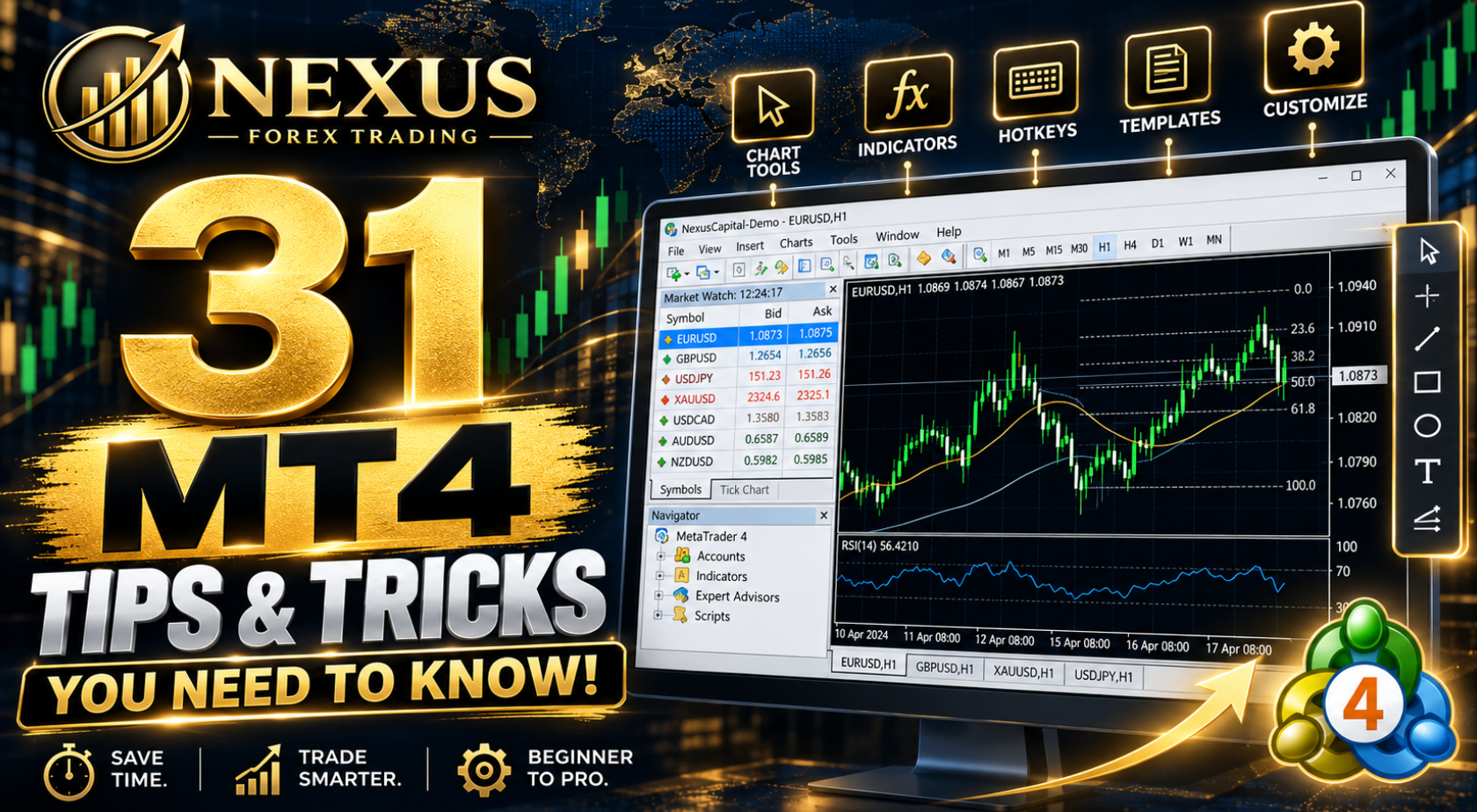
The short answer: MetaTrader 4 hides 31 time-saving features that most traders never find. Most are one shortcut away, such as Ctrl + G for the grid or Enter to jump to a date. This guide gives each tip with its exact menu path and its time in the video.
Watch the full MT4 tutorial here, or use the timestamps below to jump to a single tip. By James Murphy.
What You Need
- MetaTrader 4 from your broker (a demo account is fine).
- A mouse with a scroll wheel, which helps with the crosshair and scrolling.
- About 10 minutes to follow along with the video.
Platform note: the screenshots and menu names here are for MT4. Many shortcuts also work in MT5.
Getting Started and Measuring Price
- Download MT4 from your broker 00:12
Open your broker’s client area, download the MT4 installer, run it and log in with your account number, password and server. Start on a demo account. - MT4 ruler tool: measure price movement 00:29
Press Ctrl + F (or click the mouse wheel) for the crosshair. Click and drag to see bars, pips and price.
Chart Objects and Chart Display
- Copy chart objects 00:59
Double-click a line or shape to select it. Hold Ctrl and drag to drop a copy. - Extend chart objects 01:20
Double-click the trendline, open the Parameters tab and tick Ray so it runs forward. - Show or hide the chart grid 01:34
Press Ctrl + G, or go to Charts > Grid. - Enable chart period separators 01:43
Press Ctrl + Y, or Charts > Period Separators. Vertical lines then mark each day on intraday charts. - Close a chart window 01:55
Press Ctrl + W or Ctrl + F4.
Open the Key Windows
- Open the Terminal window 02:04
Press Ctrl + T, or View > Terminal. Trades, history, alerts and the Experts log all live here. - Open the Navigator window 02:16
Press Ctrl + N, or View > Navigator. It lists accounts, indicators, Expert Advisors and scripts. - Use the Market Watch window 02:28
Press Ctrl + M, or View > Market Watch. Right-click a symbol and choose Chart Window to open it. - View the price Data Window 02:40
Press Ctrl + D. It shows open, high, low and close for the bar under your cursor.
In the video at 2:16 I open the Navigator, because that is where your indicators and Expert Advisors are listed.
Chart Type, Orders and Screen Layout
- Change chart type 02:52
Press Alt + 1 for bars, Alt + 2 for candlesticks and Alt + 3 for a line. - Open a new trading order 03:05
Press F9, or Tools > New Order. Check the symbol and volume before you click anything. - Enable full-screen mode 03:14
Press F11 to hide the menus and press it again to return. - Stop charts jumping to the latest price 03:22
Switch off Auto Scroll under Charts > Auto Scroll, or with its toolbar button. The chart then stays where you left it.
Move Around the Chart Faster
- Move one price bar at a time 03:36
Press F12 to step one bar left and Shift + F12 to step one bar right. - Scroll through chart history 03:54
Use the left and right arrow keys, or drag the chart with the mouse. - Scroll entire chart pages 04:04
Press Page Up or Page Down to move a full screen at a time. - Jump to the beginning or end of price history 04:14
Press Home for the oldest data and End for the newest. - Automatically fit price data to the screen 04:25
Press 5 on the numeric keypad to restore the automatic vertical scale after you have dragged it. - Cycle between open chart windows 04:39
Press Ctrl + F6 to move to the next chart. - Zoom in and out of MT4 charts 04:48
Press + or -, or use the zoom buttons on the toolbar.
Alerts, Toolbars and Multiple Windows
- Set a Forex price alert 04:58
Open Terminal > Alerts, right-click and choose Create. Set the symbol, condition (such as Bid >), value and action. - Customise MT4 toolbars 05:18
Go to View > Toolbars > Customize to add, remove or reorder buttons. - Arrange multiple chart windows 05:38
Use Window > Tile Windows, or press Alt + R. - Use charts across multiple monitors 05:55
MT4 keeps charts inside its own window, so stretch the terminal across both screens, then tile the charts.
Reports, Dates and Indicators
- Generate a trading performance report 06:10
Open Terminal > Account History, right-click, pick a period, then choose Save as Report or Save as Detailed Report. - Jump to a specific chart date and time 06:38
Press Enter, type the date as DD.MM.YYYY and press Enter again. - Add multiple indicators to one window 07:03
Insert the first indicator, then drag a second from the Navigator onto the same sub-window. - Import custom MT4 indicators 07:28
Go to File > Open Data Folder > MQL4 > Indicators and paste the .ex4 or .mq4 file. Then right-click Indicators in the Navigator and choose Refresh. - Create an indicator favourites list 07:57
In the Navigator, right-click an indicator and choose Add to Favorites. It then appears in the Favorites tab.
Troubleshooting: Common MT4 Problems
Click once on the chart first so MT4 knows which window has focus. Check that a dialog box is not open.
Auto Scroll is on. Turn it off under Charts > Auto Scroll.
Check you pasted it into MQL4 > Indicators, not MQL5, then right-click Indicators in the Navigator and choose Refresh. An .ex5 file will not load in MT4.
Alerts only work while MT4 is running. If you shut the platform down or lose the connection, the alert will not trigger.
Right-click Account History and choose a period such as All History before you save the report.
Put these tips to work on an Expert Advisor
Once your charts are tidy, the next step is attaching an EA. The Nexus EURUSD EA runs on M15 charts and the GBPUSD EA on M5, and the setup guide walks through the install.
Demo first, with no broker needed. Files are normally emailed within 8 to 24 hours.
FAQ: MetaTrader 4 Tips and Tricks
Do these MT4 tips work in MT5?
Many do, including the grid, Navigator and Market Watch shortcuts. Menu names differ in places, and MT5 stores indicators under MQL5 > Indicators instead of MQL4.
Where does MT4 store custom indicators?
In your terminal’s data folder. Open File > Open Data Folder > MQL4 > Indicators, paste the file and refresh the Navigator.
What is the quickest way to learn MT4 shortcuts?
Pick five from this list, use them for a week on a demo account, then add more. Repeating a few beats memorising all 31.
Can I practise these tips without risking money?
Yes. Open a demo account with your broker and follow each step there. A demo account uses virtual money, so you can test every feature freely.
Risk warning: Trading forex and CFDs involves significant risk of loss. Past performance does not guarantee future results.