
This guide is designed so a Nexus client can complete the installation without needing someone to remote into the computer. Work through it in order for EURUSD and GBPUSD on either MetaTrader 4 or MetaTrader 5, validate everything on demo for at least 4–6 weeks, and use the troubleshooting section if something does not look right.
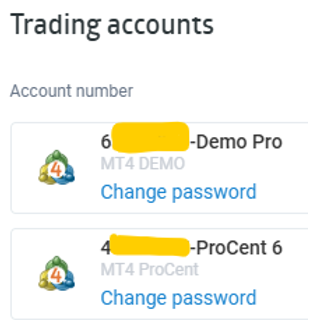
Most installation issues happen because the wrong platform, wrong account, wrong file or wrong preset is used. Check these first.
Recommended for keeping MetaTrader and Nexus running independently of your home computer.
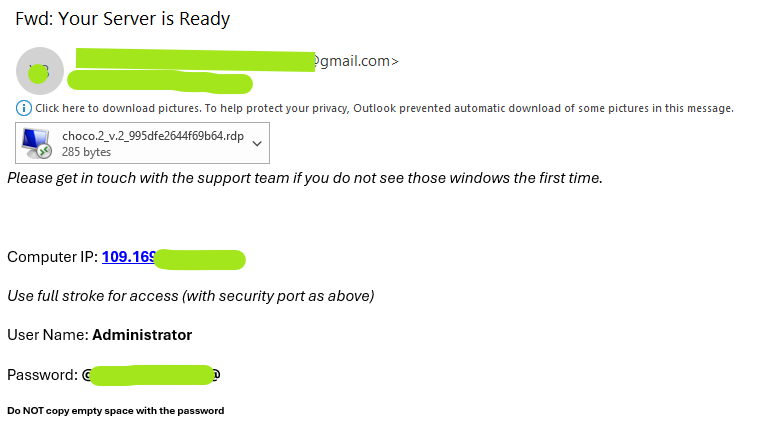
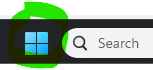
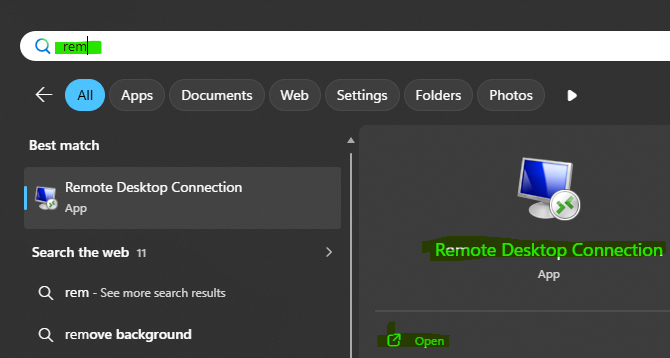
Your VPS provider normally emails these details after the server is created. They are credentials for the remote Windows server — not your broker account.
The platform must match both your broker account and the Nexus build issued to you.
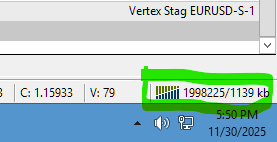
MT5 uses File → Login to Trade Account. Enter the account number, password and server supplied by your broker.
Open Official MetaTrader 5 Login Guide ↗Keep the current EA and preset files together so you do not accidentally load an older version.
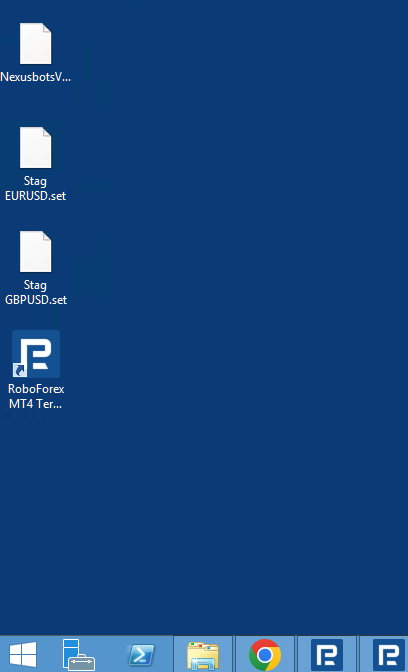
Skip this step if your Nexus licence is for MT5.
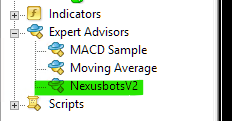
Skip this step if your Nexus licence is for MT4.
MetaQuotes confirms that File → Open Data Folder provides quick access to MT5's application data directories, including MQL5.
Open Official MT5 Data Folder Guide ↗The MT5 Navigator contains trading robots and is used to launch/manage Expert Advisors.
Open Official MT5 Interface Guide ↗Nexus EURUSD and GBPUSD use different chart timeframes.
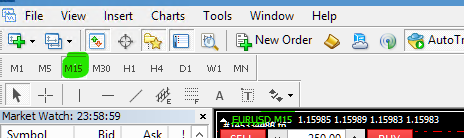
Drag the EA from Navigator onto the matching pair chart.
Platform-level automation and EA-level permission must both allow trading.
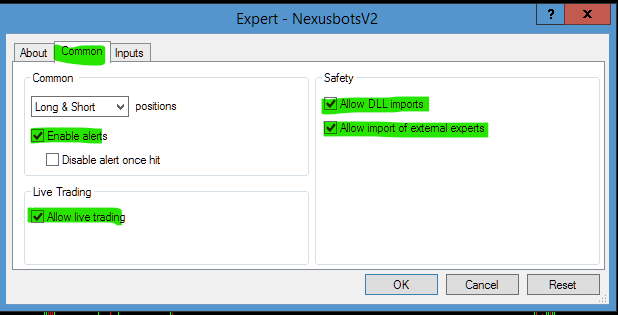
MetaQuotes documents the global Expert Advisor settings under Tools → Options → Expert Advisors, including the platform-wide automated-trading permission.
Open Official MT5 EA Settings Guide ↗MT5 can control trading at both platform level and for each running Expert Advisor. Both must permit trading.
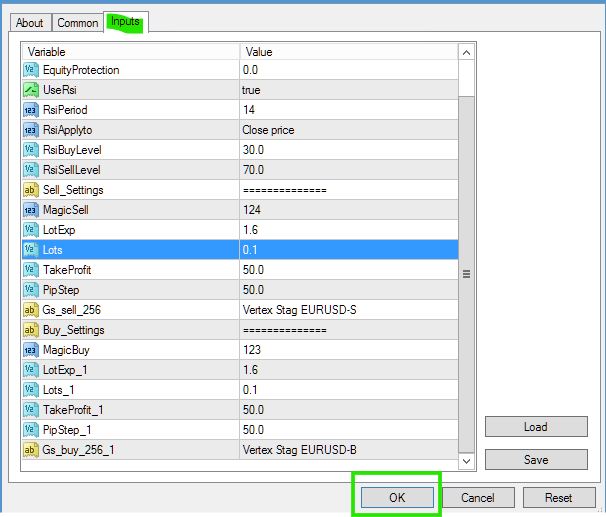
Open Official MT5 Automated Trading Guide ↗Use the preset supplied for the exact pair, platform and risk profile.
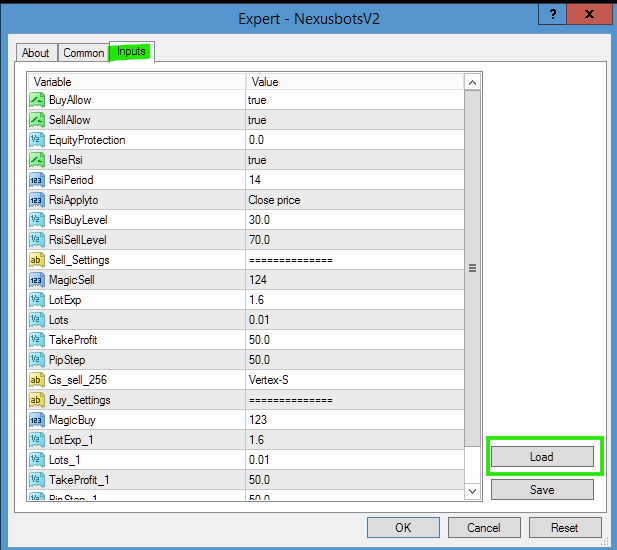
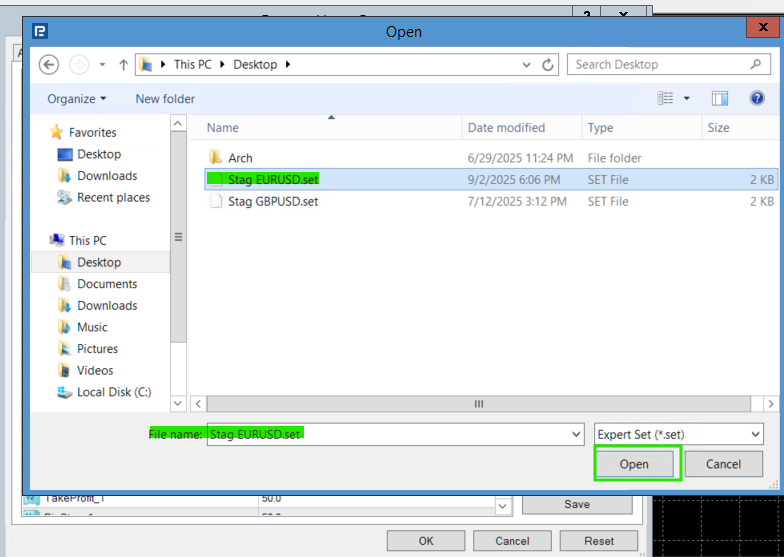
Lot size has a direct effect on risk. Start small and increase only after you understand the EA's behaviour.
Use an appropriate lot-size calculator based on your trading balance, account type, broker conditions and available margin to determine an appropriate lot size. Keep your lot sizes very low at the beginning. Only consider increasing position size once you are well versed in the EA's behaviour and comfortable with the level of drawdown and risk being taken.
Recommended starting reference: approximately 0.10 lot per $1,000 account size.Example: a $2,000-equivalent Cent / ProCent account would begin around 0.20 lot.
Recommended starting reference: approximately 0.01 lot per $50,000 account size for a non-cent account.
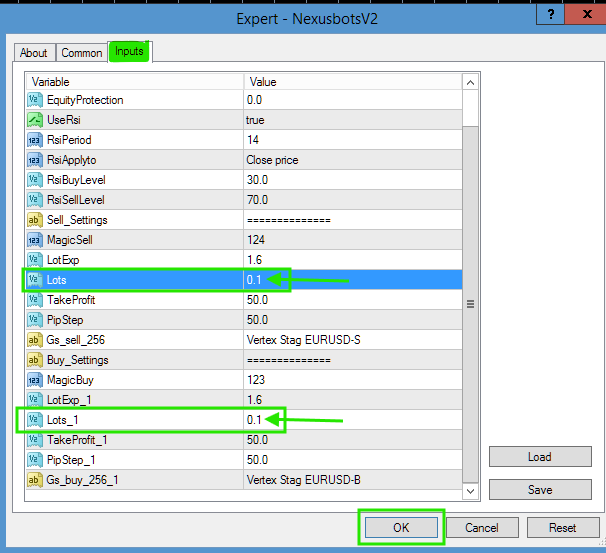
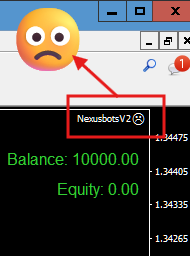
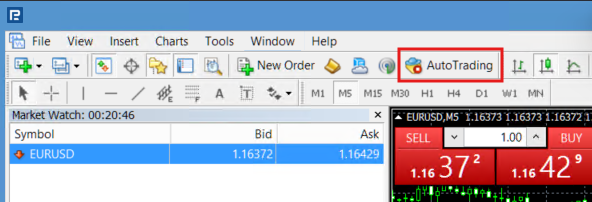
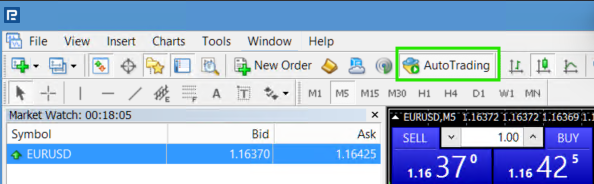
Attaching the EA is not enough if MetaTrader is preventing automated execution.
If MT4 shows the EA attached but AutoTrading is off, Nexus cannot execute trades.
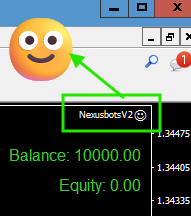
MetaQuotes documents how MT5 displays and manages Expert Advisors running on connected charts.
Open Official MT5 Running-EA Guide ↗Confirm every item below before leaving the EA unattended.
Demo validation is a required part of the Nexus self-service setup process.
Only consider live trading after completing your demo validation period.
Confirm the VPS is online, MT4/MT5 is connected, AutoTrading/Algo Trading is enabled, Nexus remains attached and there are no new errors in Experts or Journal.
Review account equity, drawdown, open exposure and current lot size.Keep the position size low until you are fully comfortable with the EA's live behaviour.
Use this section as a quick reference after the installation is complete.
GBPUSD Nexus EA: 5 Minute Chart — M5.
EURUSD Nexus EA: 15 Minute Chart — M15.
Required: run Nexus on demo for at least 4–6 weeks or longer before live trading.
Compare behaviour to expectations and regularly review Experts and Journal for errors.
Beginning reference: 0.10 lot per $1,000 account size.Example: $2,000 = approximately 0.20 lot.
Beginning reference: 0.01 lot per $50,000 account size.
Check the VPS each morning or use an uptime monitor. Verify MetaTrader restarts after Windows updates.
Start carefully, preferably with lower exposure, keep lot size small and monitor the account daily.
Work through the matching issue before contacting support.
If you have worked through the guide and your Nexus licence is active, contact support with your broker name, MT4 or MT5, trading account number, the step where the problem occurs, and the exact Experts/Journal error message.Never send your password.
Contact Nexus Support → Preferred Brokers & VPS →